
• 298 Posts
  • 813 Comments
Joined 2 years ago
cake
Cake day: July 19th, 2023

help-circle


  • Alright, so I probably can’t help you with this without having some personal hands on experience with it.

    What’s probably happening is it’s trying to install a system level systemd service, but you can’t due to the steam deck being locked down. Your options would be to unlock the filesystem, find a way to install the Mullvad systemd service as a user instead, or figure out how to use systemd-sysext to install I as a system extension separate from the immutable filesystem.

    Of those, I’m guessing the best solution would be the middle option, assuming you can get the right systemd mullvad-daemon.service file. Once you have it, it could be placed in ~/.config/systemd/user/ and enabled with systemctl --user enable mullvad-daemon.service. But as stated, the catch is you need the mullvad-daemon.service file, and I’m not sure the best way to do that. Maybe you could unlock the filesystem , let it install it as a system level service, and then convert it to a user level service? Either way it’s complicated and I’d have to mess around with it myself to figure out what would work.


  • A few options:

    • Installing in SteamOS directly - this should work, but will have to be redone every time steamOS updates. Some things like rwfus are meant to let you install things without them getting wiped, but that may or may not work. You can also create an installation script so you would just need to run a single file after a SteamOS update to restore everything.

    • Try installing through nix. The deck has nix support, and nix has both mullvad client and the mullvad cli client.

    • Just use the mullvad provided wireguard/openvpn files. In desktop they should be usable through the network manager, in game mode there’s a Decky plugin called TunnelDeck.


  • Serious Decky issues are rare. Usually when decky breaks, it just disappears from the deck until you manually reinstall/update it.

    More rarely, a plugin will break steamOS. This gives a “Steam/Decky” has encountered a problem screen, with buttons to check for a decky update, disable Decky until next reboot, or uninstall the plugin that caused the crash. This is more serious, but is still extremely easy for users to deal with and get back to a working device.

    I can’t remember if there was ever a point where Decky broke worse than that, but generally it’s pretty safe, especially if you’re on stable SteamOS.


  • For modding cyberpunk specifically, Nexus mods has a linux and Steam Deck compatible mod manager. It doesn’t support that many games, but Cyberpunk is supported.

    I don’t have enough experience using Vortex to give much advice for other games, I usually just install mods manually instead of using a mod manager. That said, I know SteamTinkerLaunch is a tool that can be used to run both Vortex Mod Manger, ModOrganizer 2, and some other mod managers for games. Once installed you can select to run games with it from the game’s properties menu in Steam. Launching the game will then open a menu where you can select to run a mod manager for the game, launch it without mods, or several other options. There should be tutorial videos on youtube and other places for it.

    Decky has a ton of plugins available, you can change how the Deck’s UI looks, change game art, change bootup animations, and do a lot more. You can browse plugins here. Occasionally decky or plugins will break when SteamOS updates, and the more plugins you have installed the more likely you are to encounter an issue like this. Some of the plugins are fantastic though so I consider it well worth the occasional trouble.


  • A weird bug with Monster Hunter Rise I ran into while playing docked, is that the game has issues when two controllers are connected (ie Deck built in controls and an external controller). It might also mess up if you have only one connected, but it’s designated as controller “2” or something like that. Iirc the game would play fine, but everytime a monster roared it would drop to 0 fps for several minutes, seemingly frozen (but Deck UI would work fine).

    There might be multiple solutions for it, but I think what I did was used a decky plugin to disable the deck controls, and then made sure my wireless controller was set to be controller 1.


  • I’ve been playing Stellar Blade, it runs incredibly well on deck. I took the default deck preset, raised FSR to quality (which looks pretty good while maintaining stable 30fps in combat), and then used lsfg-vk to double the fps to 60. I get some minor ghosting but overall it looks pretty good and feels smooth.

    I’ve been kinda hit or miss on Souls-like games in the past, but I’m really enjoying the combat in this one and finding the boss fights and exploration to be very enjoyable.

    I also have been playing RV There Yet? with some friends, and just finished it yesterday. As far as “friendslop” games go, it’s excellent, way better than I expected. I highly recommend it for anyone looking for something to play with their friend group. It’s not on sale right now, but it’s only $8 so there’s not much to lose.


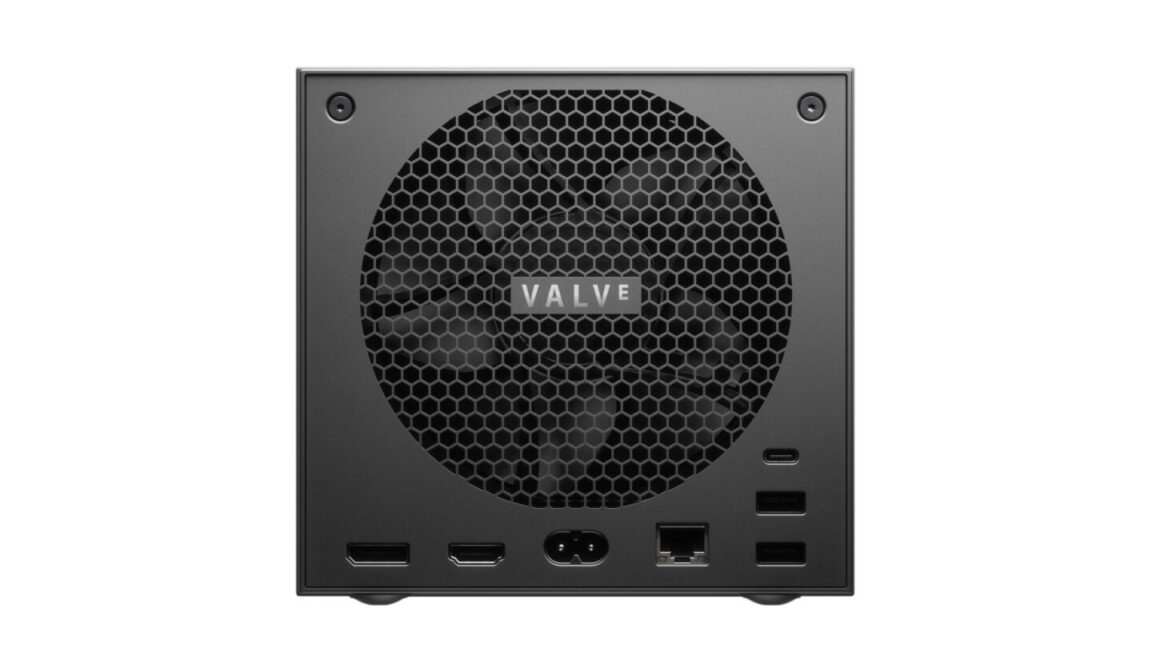
  • We’ve discussed ARM hardware for a future deck a few times here, ever since we learned that valve was working on an ARM compatibility layer.

    It seems obvious for a handheld since ARM devices are usually much more battery friendly than x86 devices, but I’ve been told that we won’t see any actual hardware advantages from x86 games running through the compatibility layer. Games that have a native ARM version will perform better, but the FEX layer is just about ensuring backwards compatibility and won’t actually unlock any hardware improvements for pre-existing x86 games.


  • Yeah, I have my microSD set to btrfs format, but it breaks auto mount every SteamOS update. I know there are ways to set it to automatically fix this, but I’ve been using a lazier option of just having a shell script to fix the fstab (file that tells the computer what to mount and where) that I run once after every steamOS update.

    It’s not a perfect solution, but it makes fixing it easy enough that I haven’t looked into a permanent fix.

    A similar setup would probably work for your external drive, basically after I had the microSD setup how I wanted it, I just copied it’s fstab configuration line. The shell script just adds that line to the bottom of the fstab file when I run it, and then after a quick reboot all my games are back and everything works again.


  • That’s fair. I’m surprised you’re still having crashes on stable though, it might be worth updating to pre-release and see if that fixes it.

    There were several plugins that broke awhile back with Steam client changes, I know at least SteamGridDB, MagicBlack, Brightness Bar all broke, and I think one about managing airpods broke too. I know SteamGridDB is working again, but I haven’t gotten around to reinstalling the other ones yet. The SteamGridDB fix specifically required a decky update and not an update to the plugin to fix, so hopefully the other plugins are all fixed on the pre-release build of decky as well.


  • If you’re on steamOS beta/steam client beta, you have to also be on the pre release version of decky (you can select this when running the decky installer).

    Even then, new updates to the deck/client can break decky and extensions. Decky will usually be updated to fix any broken updates within a day or so, but plugins can be broken much longer before they get an update. You’ll often find that you have to uninstall a specific plugin for a couple weeks.

    Anyways if you want decky to work pretty smoothly, I’d suggest sticking to stable. If you don’t mind some troubleshooting and brief down periods, you can make it work on beta. I’d recommend getting on the Steam Deck Homebrew discord server so that whenever something breaks you can easily find out why and what you need to do about it.